How to Log JSON Without Turning Your Terminal Into a Wall of Text
Learn how to inspect JSON in JavaScript and Node.js without noisy terminal dumps, exposed secrets, truncated objects, or unreadable production logs.
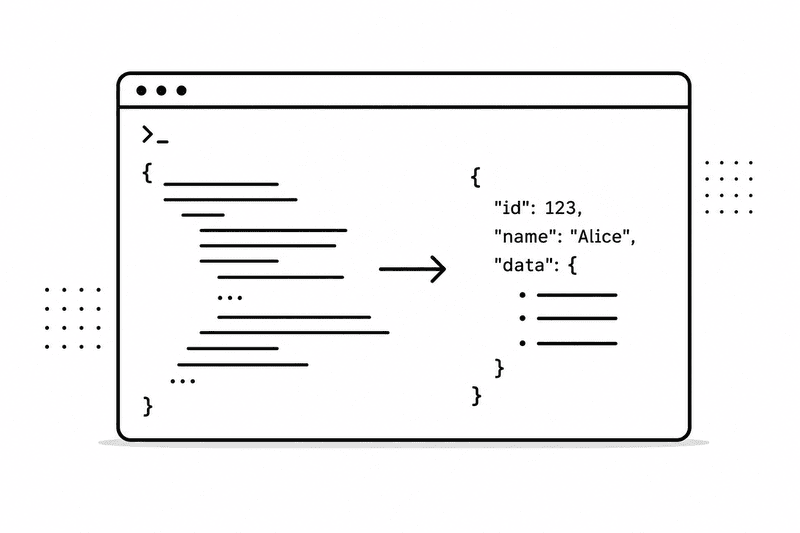
Large JSON responses are everywhere. You inspect an API response, debug a webhook, review a failed job, or check why an authentication flow took the wrong branch. The fastest first move is often:
console.log(response);That is useful until the response contains hundreds of properties, deeply nested arrays, request metadata, or a binary-looking token. One debug statement can push the useful error off the screen and leave you searching through a terminal full of braces.
The solution is not to stop logging. It is to make every log answer a specific question.
Start With the Question, Not the Object
Before adding a log, finish this sentence: I need to verify whether…
Perhaps you need to know whether a user was returned, which status an order has, or how many records passed a filter. Each question requires only a small part of the response.
Instead of dumping everything:
console.log(response);create a focused diagnostic object:
console.log("user lookup", {
  requestId: response.requestId,
  userId: response.user?.id,
  role: response.user?.role,
  hasAccessToken: Boolean(response.accessToken),
});
The labels remain understandable when several requests run concurrently, and the secret itself never appears. Optional chaining also prevents the debug statement from causing a second error while you investigate the first one.
- Give the event a short, stable label.
- Include identifiers that help correlate related events.
- Log counts, states, and booleans before logging raw records.
- Select only the fields needed for the current debugging question.
- Redact passwords, tokens, cookies, authorization headers, and personal data.
- Remove temporary dumps or lower their verbosity before deployment.
console.log() Is Not the Same as JSON
A JavaScript object and a JSON document are related, but they are not identical.
console.log(object) asks the browser or Node.js inspector to render a JavaScript value. The inspector can represent values that JSON cannot, including undefined, BigInt, Map, Set, Error, functions, symbols, and circular references.
JSON.stringify(object) serializes a value to JSON text. During that conversion:
- properties with
undefined, function, or symbol values may disappear; Datevalues become strings;MapandSetdo not automatically become useful arrays;BigIntthrows unless you transform it;- circular references throw a
TypeError.
Use the format that matches what you are trying to inspect.
JSON.stringify
- +Produces portable JSON text
- +Supports stable indentation
- +Useful for payload validation
- +Fails on circular references
console.dir / inspector
- +Understands runtime-specific types
- +Can control nesting depth
- +Useful for Error, Map, and Set
- +Output varies by runtime
Pretty-Print JSON When Formatting Helps
When the value is valid JSON and small enough to read in the terminal, format it explicitly:
console.log(JSON.stringify(response.data, null, 2));The arguments are:
- the value to serialize;
- an optional replacer;
- the number of spaces used for indentation.
The compact form:
{"user":{"id":1,"name":"Alice","settings":{"theme":"dark"}}}becomes:
{
  "user": {
    "id": 1,
    "name": "Alice",
    "settings": {
      "theme": "dark"
    }
  }
}
Pretty printing improves local readability, but it does not reduce noise. A formatted 10,000-item array is still a 10,000-item array. Select and summarize before formatting.
Control Object Depth in Node.js
Node.js may abbreviate deeply nested values. Use console.dir() when you need explicit inspection settings:
console.dir(response, {
  depth: 4,
  colors: process.stdout.isTTY,
  maxArrayLength: 20,
  maxStringLength: 500,
  compact: 3,
});
For reusable formatting, import inspect:
import { inspect } from "node:util";

const output = inspect(response, {
  depth: 4,
  maxArrayLength: 20,
  breakLength: 100,
});

console.log(output);
depth: null expands every nested level, but use it carefully. Unlimited depth solves truncation by potentially creating a much larger wall of text.
Log the Payload, Not the Entire HTTP Response
HTTP clients and SDKs often wrap the useful body in a much larger object. Depending on the library, a response can include headers, request configuration, redirects, timing information, sockets, and internal metadata.
With Axios, the payload is normally in response.data:
console.log("products response", {
  status: response.status,
  contentType: response.headers["content-type"],
  count: Array.isArray(response.data) ? response.data.length : undefined,
  preview: Array.isArray(response.data)
    ? response.data.slice(0, 3)
    : response.data,
});
With Fetch, choose what to read and log:
const response = await fetch(url);
const data = await response.json();

console.log("products response", {
  status: response.status,
  ok: response.ok,
  count: Array.isArray(data) ? data.length : undefined,
  preview: Array.isArray(data) ? data.slice(0, 3) : data,
});
Do not assume every response is JSON. Check the status and content type when an endpoint may return HTML, plain text, or an empty body on failure.
Summarize Large Arrays
An endpoint returning 5,000 products rarely requires 5,000 terminal entries. Combine metadata with a representative sample:
console.log("product import", {
  total: products.length,
  active: products.filter((product) => product.active).length,
  sampleIds: products.slice(0, 5).map((product) => product.id),
});
For a flat array of objects, console.table() is often easier to scan:
console.table(
  products.slice(0, 10),
  ["id", "name", "status", "price"],
);
The second argument restricts the table to relevant columns. This matters when each record contains dozens of properties.
Use a Safe Preview Helper
A small helper makes consistent previews easier and prevents accidental full-array dumps:
function summarizeCollection(items, limit = 5) {
  return {
    total: items.length,
    shown: Math.min(items.length, limit),
    truncated: items.length > limit,
    preview: items.slice(0, limit),
  };
}

console.log("orders", summarizeCollection(orders));
For strings, include their length and a deliberately limited preview:
function summarizeString(value, limit = 160) {
  return {
    length: value.length,
    preview: value.length > limit
      ? `${value.slice(0, limit)}…`
      : value,
  };
}
Do not apply this helper blindly to secrets. A truncated credential is still credential material.
Redact Secrets Before Logging
Authentication data is especially easy to expose during debugging. Logs may later be uploaded to a monitoring service, copied into an issue, attached to a support ticket, or retained in a build artifact.
Prefer an explicit redaction function:
function redactAuth(value) {
  return {
    ...value,
    password: value.password ? "[REDACTED]" : undefined,
    accessToken: value.accessToken ? "[REDACTED]" : undefined,
    refreshToken: value.refreshToken ? "[REDACTED]" : undefined,
  };
}

console.log("auth result", redactAuth(authResult));
Redaction should happen before the object reaches the logger. Avoid logging:
- passwords and password-reset tokens;
- API keys, session IDs, cookies, and authorization headers;
- full payment details;
- private keys and signing secrets;
- unnecessary email addresses, phone numbers, or personal records.
If you need correlation, use an existing non-secret request ID or create a deliberate fingerprinting strategy. Do not invent ad hoc masking and assume it is safe.
Group Related Browser Logs
Browser DevTools supports collapsible groups:
console.groupCollapsed("Authentication result");
console.log("User", user);
console.log("Session state", session?.state);
console.log("Has token", Boolean(token));
console.groupEnd();
Groups improve an interactive debugging session, but they are presentation features rather than a production logging format. A server-side collector needs structured events, not terminal layout instructions.
Move Large Payloads Out of the Terminal
Sometimes the full document genuinely matters. You may need to search nested fields, compare two branches, validate syntax, or inspect a payload supplied by another team.
At that point, the terminal is the wrong interface. Save a controlled development payload to a temporary file or open a sanitized copy in a JSON viewer. A dedicated tool gives you formatting, validation, search, and focused queries without pushing other logs out of view.
Use only sanitized data. Moving a secret from the terminal into another interface does not make the secret safe.
Keep Production Logs Structured
Development logs optimize for a person sitting at a terminal. Production logs optimize for collection, search, alerting, retention, and incident response.
A useful production event is small, structured, and stable:
logger.info({
  event: "order.processed",
  requestId,
  orderId: order.id,
  itemCount: order.items.length,
  durationMs,
});
Avoid building the event as one interpolated sentence. Individual fields are easier to filter and aggregate. Many production loggers emit compact JSON Lines: one JSON object per line. A development transport can pretty-print the same events locally without changing their underlying structure.
Use log levels consistently:
- debug for temporary diagnostic detail;
- info for normal, meaningful lifecycle events;
- warn for recoverable unexpected conditions;
- error for failures that need investigation.
Logging every successful loop iteration at info can be as damaging as logging an entire response. Volume affects storage cost, signal-to-noise ratio, and the time required to find an incident.
A Practical Logging Checklist
Before keeping a log statement, verify that it:
- answers a clear operational or debugging question;
- has a stable event name or label;
- includes useful correlation identifiers;
- records counts and states instead of complete collections;
- contains no credentials or unnecessary personal data;
- uses the correct severity level;
- remains understandable when events from concurrent requests are mixed;
- will not create excessive volume inside a loop.
Final Thoughts
Better JSON logging is not about printing more information or finding a prettier way to dump the same enormous object. It is about reducing a runtime value to the evidence needed for one decision.
Start with a question. Select the relevant fields. Add a count or short sample. Redact sensitive values. When the complete document is necessary, move a sanitized copy into a tool designed for structured inspection.
The best log is not the most detailed one. It is the smallest event that helps you understand what happened.
Frequently Asked Questions
What is the best way to log JSON in JavaScript?
Log a small object containing only the fields needed for the current question. Use JSON.stringify(value, null, 2) when you need stable formatted JSON, and use console.dir() or util.inspect() when you need to inspect a JavaScript value that is not valid JSON.
Why does console.log show an object differently from JSON.stringify?
console.log() uses the runtime inspector and can display JavaScript-specific values such as undefined, Map, Set, Error, and circular references. JSON.stringify() produces JSON text, omits some unsupported values, and throws on circular references.
How can I stop Node.js from truncating nested objects in logs?
Use console.dir(value, { depth: null }) or util.inspect(value, { depth: null }). Apply unlimited depth only to controlled values because it can produce enormous output.
How should I log a large API response?
Log the status, request ID, item count, relevant fields, and a small sample. Save a sanitized payload to a temporary file or inspect it in a searchable JSON tool only when the full document is genuinely required.
Is it safe to log truncated access tokens or API keys?
Avoid it whenever possible. A prefix still reveals credential material, and logs may be copied into several systems. Prefer a non-secret identifier, a deliberate one-way correlation fingerprint, or an explicit [REDACTED] marker.
Should production logs be pretty-printed JSON?
Usually not. Production services normally emit one compact structured JSON object per event so collectors can parse it efficiently. Pretty printing belongs in a local development transport or log viewer.